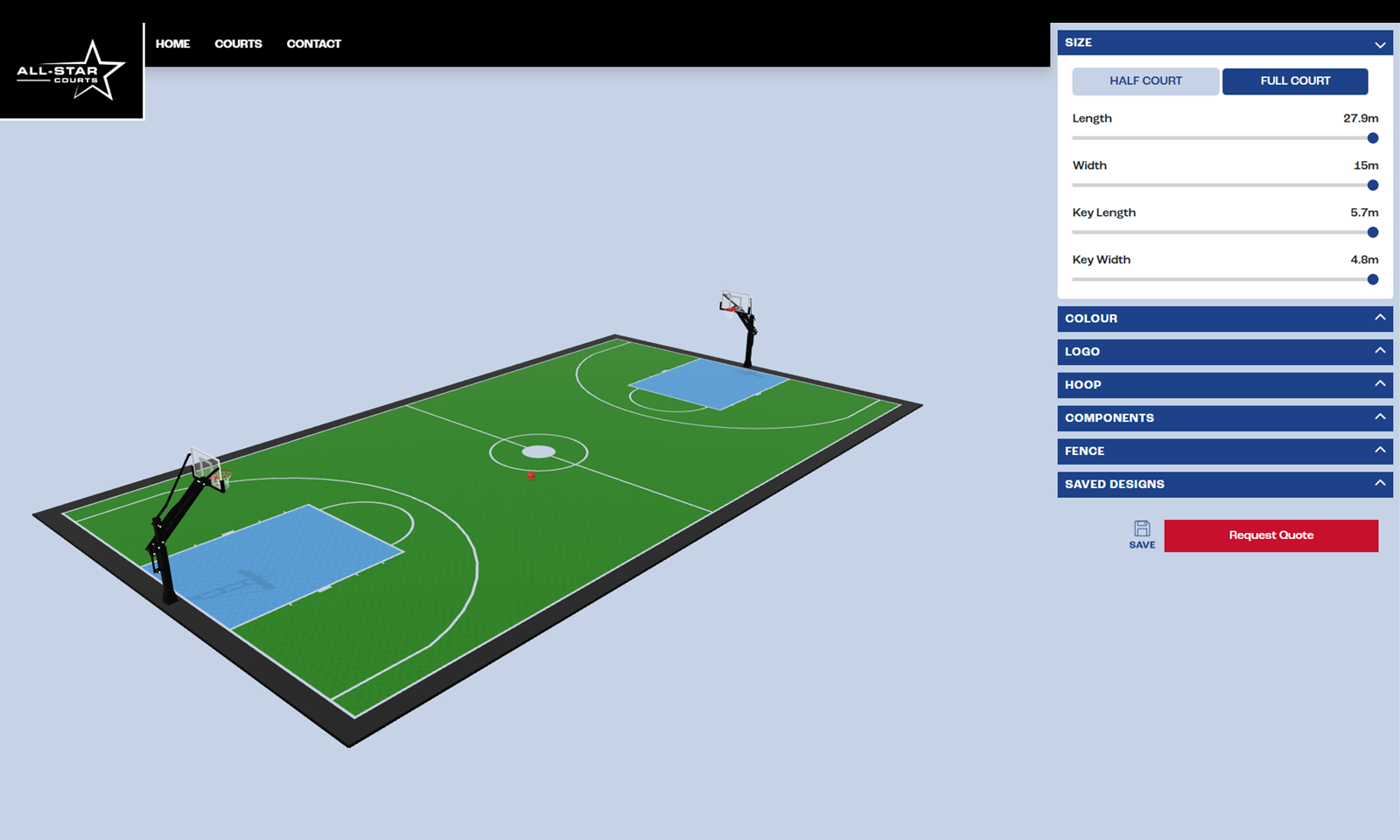
3D Basketball Court Designer
How AllStar Courts turned quote-first enquiries into a real-time 3D self-serve court design experience.
A. The Challenge
Before the configurator, AllStar Courts' sales process relied on the same workflow most court builders use: the customer calls or fills out a contact form, describes what they want, and waits for a quote. If the customer has a specific vision, for example a half-court with a three-point line in navy blue, a red key, their logo at centre court, and fencing on the back and sides, that vision lives entirely in their head until a sales conversation translates it into a proposal.
B. What We Built
The court designer lives at designer.allstarcourts.com.au and serves as a standalone design tool linked from AllStar Courts' main website. It's built entirely with vanilla Three.js and WebGL.
Court Dimensions
The designer starts with the most fundamental decision: how big is the court? Customers set the overall length and width, plus key dimensions like the three-point line and key area. The 3D model updates in real time as dimensions change — the court surface scales, line markings reposition, and the proportions adjust to reflect exactly what will be built.
Surface Colours
Customers choose colours for three distinct zones: the main court surface, the key area, and the edging. Each zone updates independently in the 3D view, letting customers experiment with combinations.
Logo Placement
This was one of the most requested features and one of the most technically interesting to build. Customers can place a logo on the court surface, choosing from six predefined positions (centre court, baseline, sideline, and variations). The logo is projected onto the 3D surface and rendered in real time as the customer repositions it.
Hoop Selection
The designer includes two hoop styles. Both are heavy-duty, spring-loaded systems with tempered glass backboards (60" and 70"). Selecting a hoop swaps the 3D model in the scene, so customers see the proportional difference between options in context with their court dimensions.
Fencing Configuration
Fencing was the most complex piece of configuration logic in the project. Customers can toggle fencing independently on all four sides of the court, and adjust the distance of each fence from the court edge. The 3D model generates fence posts, panels, and gates dynamically based on these parameters.
Save, Screenshot, and Quote
Customers can save multiple court designs locally, capture screenshots of their configured court, and submit their design as a formal quote request. The quote form collects contact details and delivery information alongside the full specification of the designed court. This is the commercial engine of the tool. Every design submitted is a qualified lead with a complete specification attached.